
One installer per plugin
FabFilter installation.
FabFilter releases a separate installer for each plugin, so you only download the ones you bought. Set aside about ten minutes. You will need the activation code from your licence email.
Official brand help
www.fabfilter.com/support ↗How to install and activate
Before you start: you will handle two different codes
From us
Activation code
From FabFilter
Licence key
The software only accepts the licence key — the activation code will be rejected there.
Get your licence key
- 1
Find your activation code
It is near the top of your licence email — three short parts joined by dashes. You will enter it part by part in the next step.
Sign in to view itYour activation code
It is in your licence email, in the purple panel. Signed in? It is in your account too.
- 2
Go to the FabFilter activation page and type it in
The page has three boxes. Your code has three parts — type one part into each box, in order. Pasting the whole code into the first box will not work, and the dashes stay behind. Then enter your email address twice. FabFilter will also ask for your name and address — that is normal, it is how they set up your account.
Open ↗TIPAlready have a FabFilter account? Use that account's email so this licence joins it. Never had one? Use any email you actually check — FabFilter creates your account for you and emails you the login.What you will see
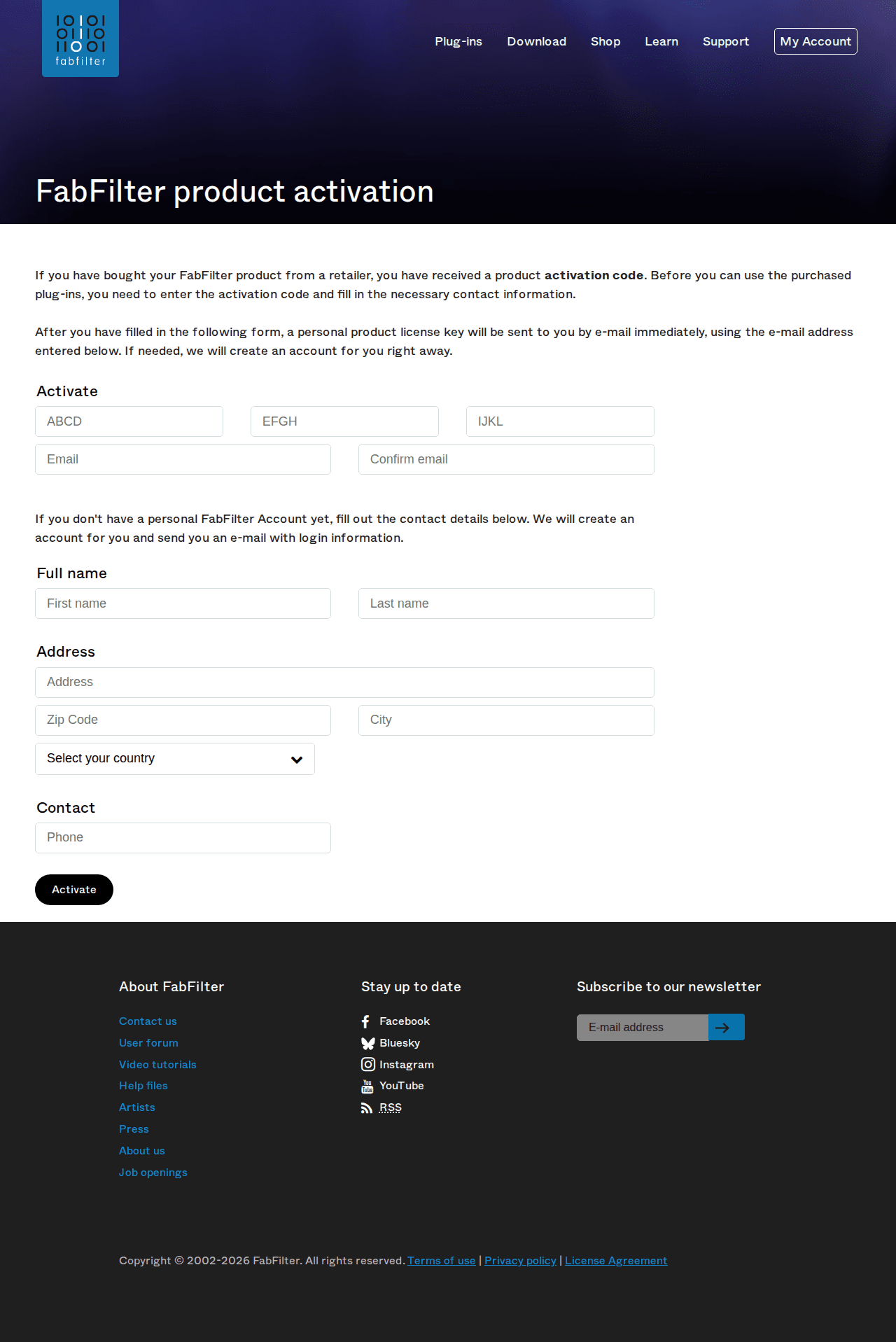
The three boxes on fabfilter.com/activate — one part of your code in each - 3
Press Activate, then open your email inbox
FabFilter sends your personal licence key straight away, to the address you just entered.
CHECKPOINT
You now have an email from FabFilter containing your licence key. Nothing after ten minutes? Check your spam folder.
Install your plug-in
- 4
Download the installer for each product you bought
FabFilter has a separate installer for every plug-in. Find yours, then pick the version for your computer — Mac or Windows.
Open ↗TIPThe installers on that page are the same free 30-day trials everyone downloads. That is expected — your licence key is what turns yours into the full version. - 5
Run the installer and follow the prompts
Say yes to what it suggests — the standard choices are right for almost everyone.
TIPIf it asks which plug-in formats you want, the ones already ticked are right for almost everyone. The one exception: add AAX if you use Pro Tools.CHECKPOINT
The installer finished. Your plug-in is on your computer — running as a trial until the next part.
Unlock it
- 6
Open the plug-in and paste your licence key
Open the plug-in in the music program you use — Logic Pro, Ableton Live, FL Studio, Pro Tools, any of them. Until it is unlocked, the plug-in tells you it is running as a trial and offers to enter a licence key — paste the key from FabFilter's email there, not the activation code from Part 1.
CHECKPOINT
No trial notice when the plug-in opens — that is it. Enjoy.
If something goes wrong
My code is not accepted
Codes are entered exactly as sent — paste rather than retype, and keep or drop dashes exactly as the steps say. Still stuck? Contact us with your order number and we will sort it, usually the same day.
The plug-in does not show up in my music program
Check you installed the format your program uses and rescan its plug-in folders. The FabFilter help pages cover each program's scan settings.
I bought this but have no email
Check spam first — licence emails arrive within minutes of payment. Nothing there? Contact us and we will resend it.
I bought several products
Each product has its own installer, and codes only unlock the product they were issued for — work down your order one at a time.